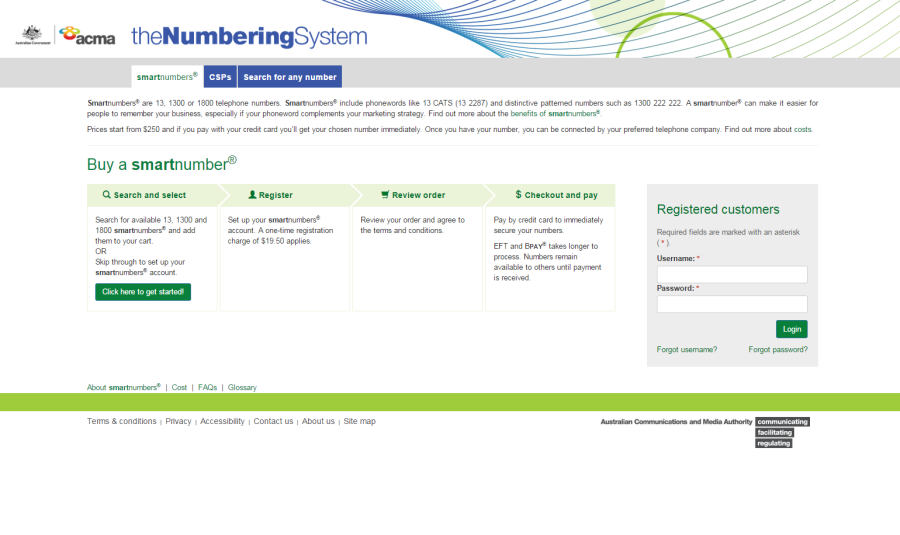
Select the smartnumbers tab in the Numbering system.
This topic describes how to:
Search the register of smartnumbers
Download your search results
Select the smartnumbers tab in the Numbering system.
Login with your username and password in the Registered customers box. The smartnumbers Dashboard will display.
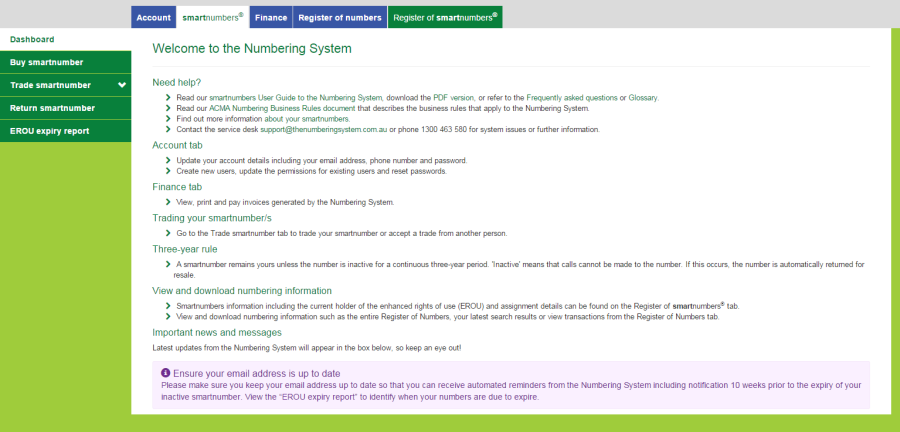
Select the Register of smartnumbers tab. The 'Search for smartnumbers' page will display.
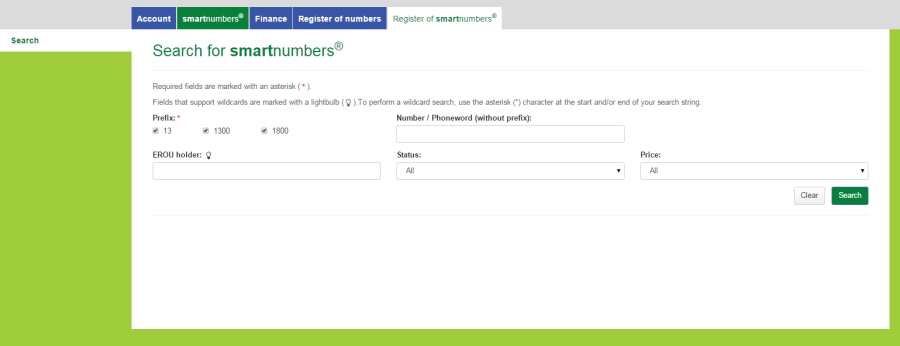
Tick the Prefix checkboxes for the numbers you want to find:
13 for numbers that have call costs shared by the caller and the business
1300 for numbers that have call costs shared by the caller and the business
1800 for numbers that have calls paid for by the business owner of the number.
Filter search results using any combination of the following search filters:
Filter by EROU holder: type an EROU holder name in the EROU holder box.
Filter by status: select a status from the Status dropdown menu.
Filter by price: select a price range from the Price dropdown menu.
To find all available smartnumbers within the filter criteria, click on Search. You can also type a number or phoneword (or part thereof) in the Number/Phoneword (without prefix) box and click on Search. The search results will display the numbers along with status, price, current EROU holder and EROU assignment date details, or will show 'no records found' if there are no matches.
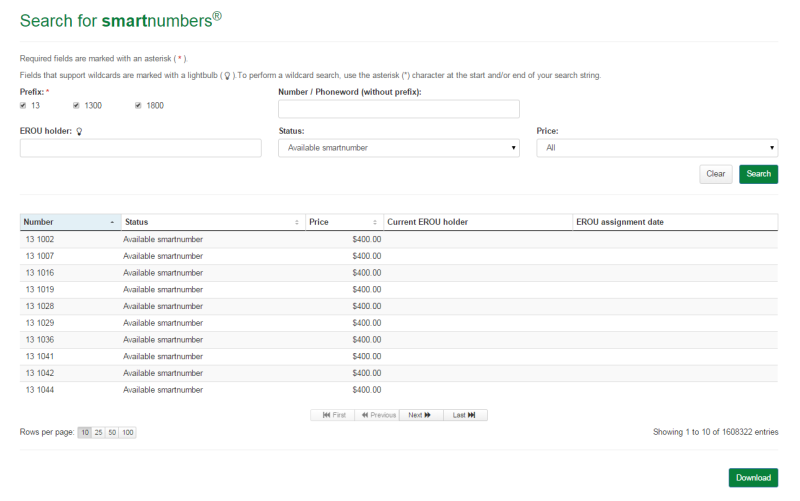
Note: If multiple rows are displayed, click on Next to navigate through them. You can also change the number of rows displayed per page to 25, 50 or 100. You can also sort by column headers.
Note: Click on Clear to perform a new search.
To download your search results in an Excel spreadsheet, click on Download. Your browser's download dialog box will display.
Click on OK or Open depending on your browser. The .csv file will save via your browser and can be opened in Excel.