Manage Multi-Factor Authentication (MFA)
This topic describes how to:
You will need to login as an account administrator to be able to manage
multi-factor authentication of the account and its users. If you
registered the account and are the only user, you are an account
administrator by default.
Add or remove multi-factor authentication for yourself
-
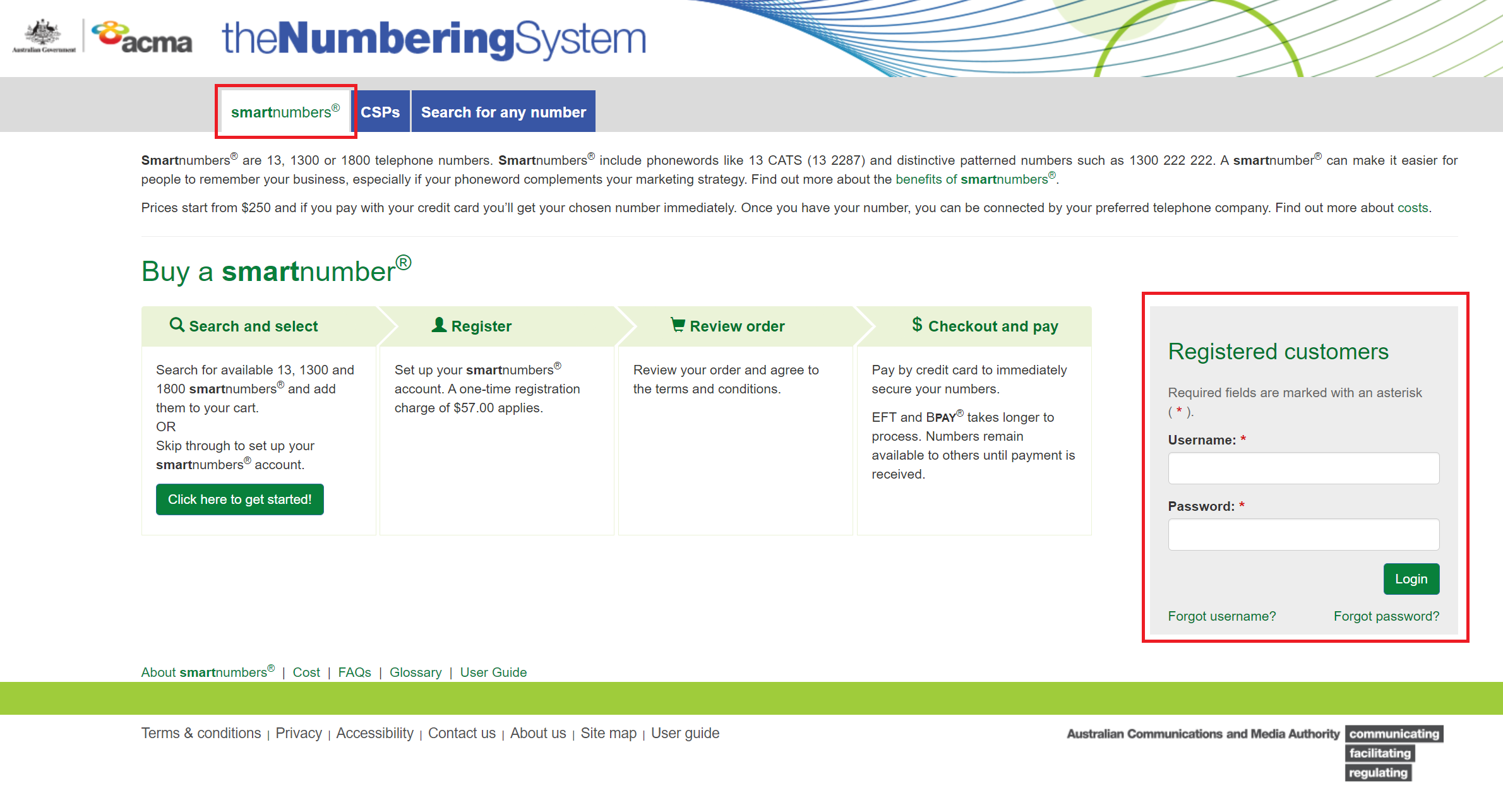
Log into the Numbering system with you smartnumbers account username
and password
-
Navigate to the MFA page and click Add to add MFA for yourself

-
Install Google Authenticator on your iPhone or Android mobile phone if
it is not installed already
-
Use Google Authenticator on your mobile to scan the QR code. Look for
a "plus" or "add" button, which will allow you to scan QR codes, as
well as manually enter the account and setup key as an alternative
method
-
Once the MFA of your account has been added to Google Authenticator,
enter the MFA code provided to you by Google Authenticator and click
Set up

-
Once MFA has been set up successfully, a confirmation message will be
displayed below the top menu. You can also remove your MFA by clicking
the Delete button below the QR code.

Toggle multi-factor authentication requirement for all users
in your account
If you are an account administrator, you can request all users in your
account to enable MFA. Users who do not have MFA enabled will be
redirected to the MFA setup page on their next login.
-
Navigate to the account details page, under the
Multi-factor Authentication of Account section, you can toggle
the
Require multi-factor authentication for all users in this
account
checkbox to enable/disable the MFA requirement for all users. Click
Save on the bottom right to save the change

-
Users who do not have MFA enabled will be redirected to the MFA setup
page on the next login

Remove multi-factor authentication from a user in your
account
If a user lost their mobile phone or uninstalled Google Authenticator by
accident, you can remove their MFA to allow them log back into the system
and set up MFA again.
-
Search for users in your account and click Update on the user
whose MFA is to be removed

-
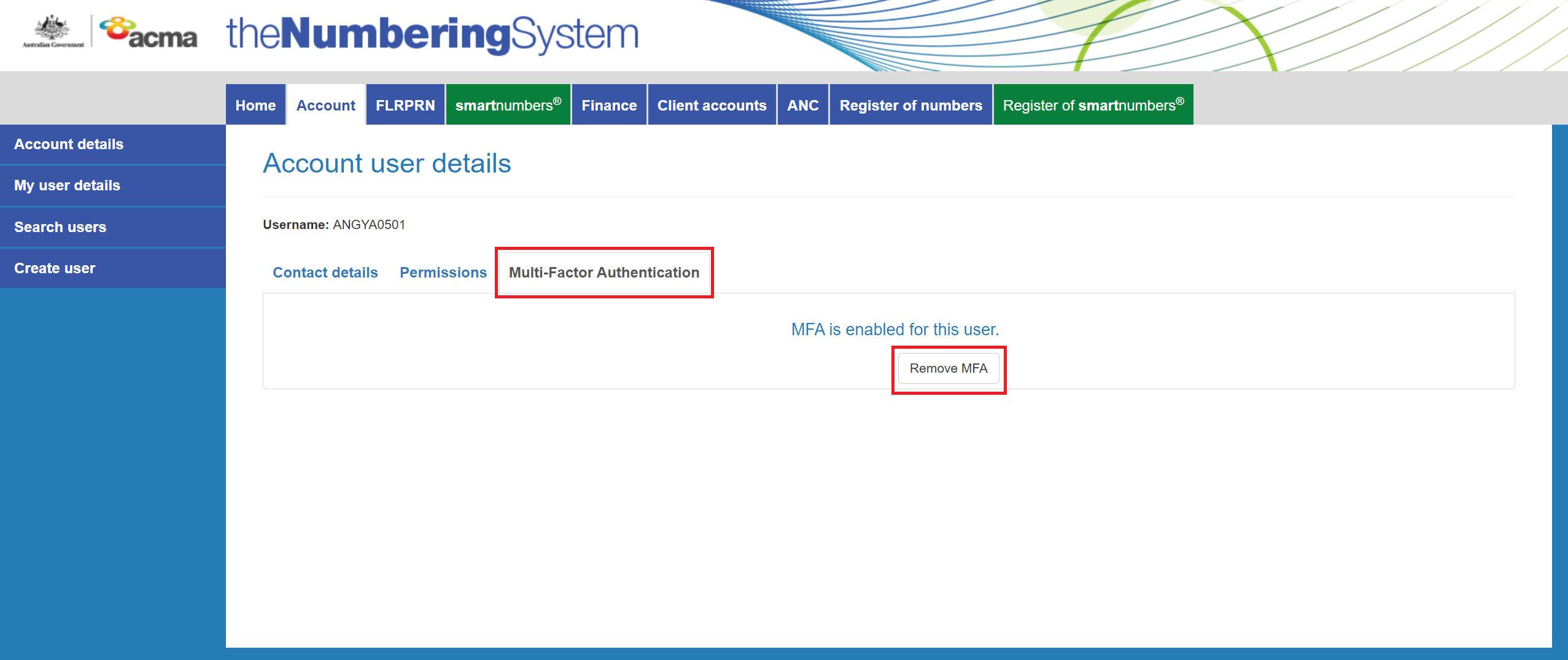
Navigate to Multi-Factor Authentication and then click
Remove MFA to remove MFA from this user